Live Images
The easiest way to try it out is with a live image booted off a USB disk. Docker images also provide a quick and easy way to test Plasma.
Download live images with Plasma Download Docker images with PlasmaPlasma 5.25 brings new features and concepts to the desktop environment.
Tuesday, 14 June 2022

Gestures on touchpads and touchscreens put Plasma at your fingertips
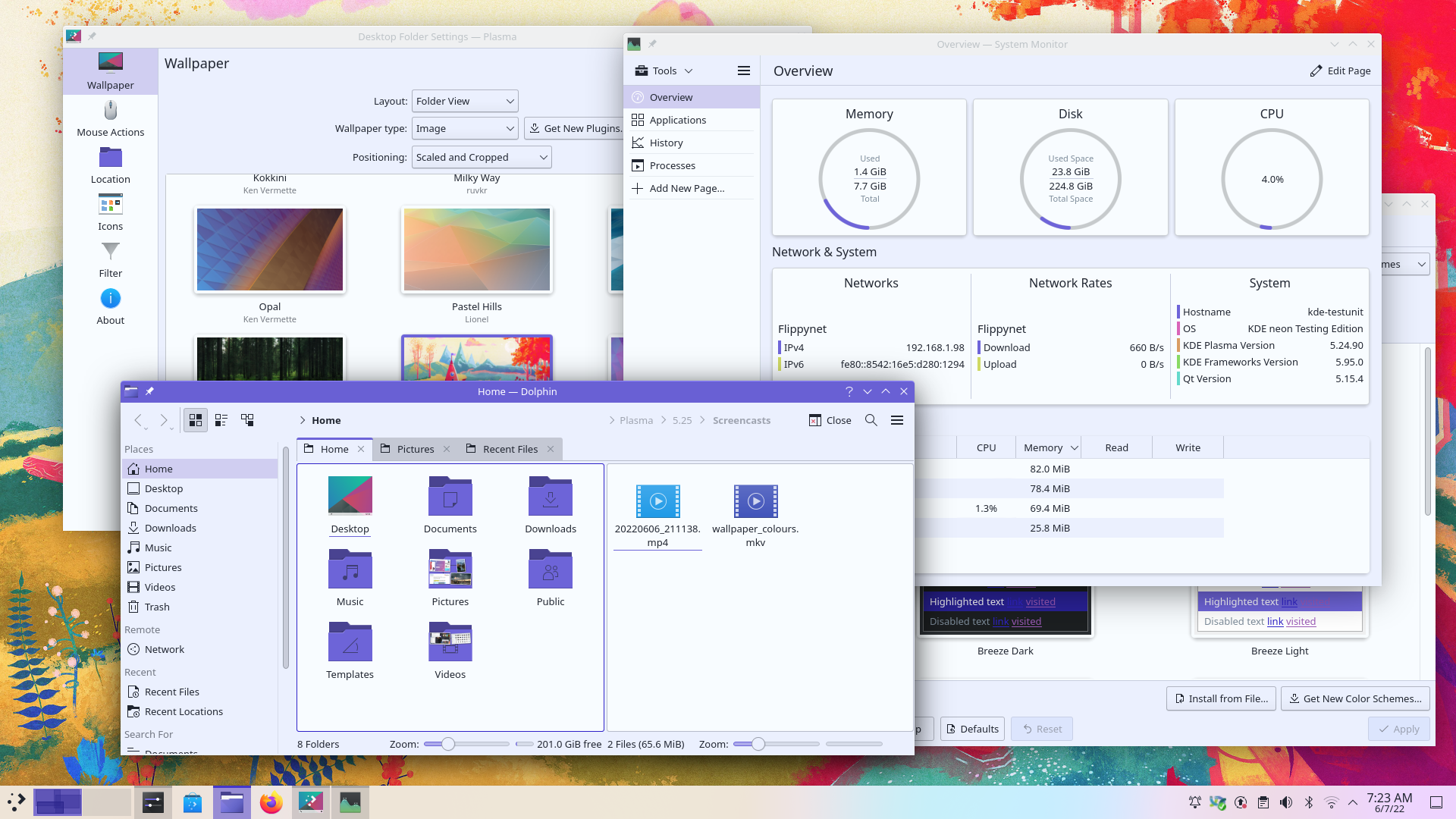
Bored of grey? Plasma puts a literal rainbow of possibilities at your disposal
Customizing your desktop has never been easier... or more fun!
KDE Plasma 5.25 redesigns and enhances how you navigate between windows and workspaces.
The Overview effect shows all of your open windows and virtual desktops.
You can search for apps, documents, and browser tabs with KRunner and the Application Launcher.
You can add, remove, and rename virtual desktops.
Hold down the Meta ("Windows") key and press W to enter Overview mode or use a four-finger pinch on your trackpad.
On your touchpad:
On your touchscreen:
You can configure swipes from the screen edge to open Overview, Desktop Grid, Present Windows, and Show Desktop as they directly follow your finger.
Open System Settings and pick the open Workspace Behavior tab, and then Touch Screen. Click on any of the squares shown on the sides of the monitor icon and a dropdown will open. Select Overview, Desktop Grid, Present Windows, or Desktop Grid and click Apply. Now you can slide your finger from the edge of the screen you selected towards the middle of the screen and watch the magic happen.
Sync the accent color with your wallpaper! The dominant color of your background picture can be applied to all components that use the accent color.
Open System Settings and choose the Appearance tab, then Colors. Select From current wallpaper and click Apply. It is that easy.
With slideshow wallpapers, colors update when the wallpaper changes.
Tint all colors of any color scheme using the accent color and adapt the color of elements of every window to the background. You can also choose how much tint you'd like to see mixed in with your normal color scheme.
Open System Settings and then click on the Appearance tab. Choose Colors and click on the Edit icon (the little pencil button) in the lower-right corner of a color scheme preview and a configuration dialogue will open. In the Options tab, tick the Tint all colors with the accent colors box and slide Tint strength: to the desired value. Click Save as and give your color scheme a new name. Click Close. Select your newly created color scheme and click Apply.
While configuring your color scheme, you can also make the header area or titlebar use the accent color.
Activate Touch Mode by detaching the screen, rotating it 360°, or enabling it manually.
If your laptop supports detaching or rotating back the keyboard, do that now. Touch Mode will activate. If not, you can manually enable Touch Mode by opening System Settings, clicking on the Workspace Behavior tab, and selecting the Touch Mode: Always Enabled radio button at the end of the page.
The Task Manager and the System Tray become bigger when in Touch Mode making it easier on your fingers. You can customize the size of the icons when Touch Mode is disabled, too.
To manually increase icon spacing in the Task Manager, right-click the Task Manager and select Configure Icons-Only Task Manager. Select Large in the Spacing between icons: option. To manually increase the icon spacing in the System Tray, right-click on the System Tray and select Configure System Tray. Select Large in the Panel icon spacing: option.
Titlebars of KDE apps become taller when in Touch Mode, making it easier to press, drag, and close windows with touch. Context menu items become taller when in Touch Mode, giving you more space to tap the correct one.
Floating Panels add a margin all around the panel to make it float, while animating it back to look normal when a window is maximized.
Right-click the panel, select Enter Edit Mode, and then More Options. Select Floating.
Blend Effects gracefully animate the transition when color schemes are changed.
Move your entire desktop, with folders, widgets and panels, from one monitor to another with the Containment Management window.
Right-click on the desktop and select Enter Edit Mode. Choose Manage Desktop and Panels from the top toolbar and drag and drop desktops or panels from one display to another, or click on their hamburger menu.
Hold down the Meta ("Windows") and Alt keys, then press P to cycle focus between all your panels and navigate between their widgets with the arrow keys. You can also right-click a panel and select Enter Edit Mode. Then choose More Options so you can set a custom shortcut to focus that particular panel.
... And there's much more going on. If you would like to see the full list of changes, check out the changelog for Plasma 5.25.
The easiest way to try it out is with a live image booted off a USB disk. Docker images also provide a quick and easy way to test Plasma.
Download live images with Plasma Download Docker images with PlasmaDistributions have created, or are in the process of creating, packages listed on our wiki page.
Note that packages of this release might not be available on all distributions at the time of this announcement.
Package download wiki pageYou can install Plasma directly from source.
Community instructions to compile it Source Info PageYou can give us feedback and get updates on our social media channels:
Discuss KDE on the KDE Forums.
You can provide feedback direct to the developers via the #Plasma Matrix channel, Plasma-devel mailing list or report issues via Bugzilla. If you like what the team is doing, please let them know!
Your feedback is greatly appreciated.
KDE is a Free Software community that exists and grows only because of the help of many volunteers that donate their time and effort. KDE is always looking for new volunteers and contributions, whether it is help with coding, bug fixing or reporting, writing documentation, translations, promotion, money, etc. All contributions are gratefully appreciated and eagerly accepted. Please read through the Supporting KDE page for further information or become a KDE e.V. supporting member through our Join the Game initiative.
KDE is an international technology team that creates free and open source software for desktop and portable computing. Among KDE’s products are a modern desktop system for Linux and UNIX platforms, comprehensive office productivity and groupware suites and hundreds of software titles in many categories including Internet and web applications, multimedia, entertainment, educational, graphics and software development. KDE software is translated into more than 60 languages and is built with ease of use and modern accessibility principles in mind. KDE’s full-featured applications run natively on Linux, BSD, Windows, Haiku, and macOS.
Trademark Notices.
KDE® and the K Desktop Environment® logo are registered trademarks of KDE e.V..
Linux is a registered trademark of Linus Torvalds. UNIX is a registered trademark of The Open Group in the United States and other countries.
All other trademarks and copyrights referred to in this announcement are the property of their respective owners.
For more information send us an email: press@kde.org